CapCut Long Video to Shorts (2026): Steps and Alternatives
CapCut's Long video to shorts tool cuts a long talking video into vertical clips. Here are the steps, the limits we hit in the US, and other ways to do it.

On this page
CapCut's Long video to shorts tool takes an uploaded video, lets you choose clip durations, and has AI cut it into several vertical 9:16 clips with captions[1][2]. When we opened it in CapCut's web app from a US account on November 16, 2026, it showed "This feature is not available in your country or region," but the same tool opened in CapCut's desktop app that day. If the web app blocks it for you, use the desktop app, cut Shorts by hand in CapCut's editor or use a dedicated AI clipper, then schedule every clip at once.
Key takeaways
- CapCut's tool page says Long video to shorts picks moments from "changes in visuals, audio, and context" and can include automatic captions[1].
- In our US test on November 16, 2026, CapCut's web app blocked the tool with "This feature is not available in your country or region," while CapCut's desktop app (version 9.6) opened it the same day.
- CapCut's pricing page says plan availability and features "may vary by region, platform, and current offering"[3].
- The manual method still works in CapCut's web editor: Ratio to 9:16, Split, Delete, then Captions. Free accounts got 2 Auto captions runs a month in our test.
- CapCut's Share and schedule dialog listed only TikTok in our test, so Reels and Shorts still go out one channel at a time unless you use a multi-channel scheduler.
- YouTube treats a clip as a Short when it is up to 3 minutes long and square or vertical[4].
- A dedicated AI clipper skips the manual cuts. In our test of Posteady, which we make, it found 6 highlights in an 11-minute sample in about 2 minutes 41 seconds.
CapCut long video to shorts at a glance
| CapCut AI (Long video to shorts) | CapCut manual edit | Posteady AI video clipping | |
|---|---|---|---|
| Where it runs | Desktop app (opened in our US test) and web app (blocked in our US test) | Web editor (tested), desktop and mobile apps | Web app |
| How clips are picked | AI picks moments from changes in visuals, audio and context[1] | You pick every cut | AI reads what is said and suggests up to 8 highlights per analysis[5] |
| Clip length | You choose durations[1] | Any length | Automatic 20 to 90 seconds, or a range up to 180 seconds[5] |
| Captions | Automatic captions can be included[1] | Auto captions, 2 runs a month on our free account | Automatic, or your own SRT or VTT file[5] |
| Horizontal to vertical | Auto subject tracking from 16:9 to 9:16[2] | You set the ratio and scale by hand | Frame follows whoever is speaking[5] |
| Posting | CapCut's page lists sharing to TikTok, YouTube, Facebook and Instagram[1]. In our test, the Share and schedule dialog listed only TikTok | Same as CapCut AI | Publish or schedule to up to 7 channels[5] |
| Price | Free entry point. Pro is $19.99 a month or $179.99 a year, with a 7-day free trial for new users in some regions[3] | Free editor. Pro templates and features need Pro | 7-day free trial, then Creator at $29 a month or $20 a month billed yearly, with 3 social accounts (extra accounts $5 a month each)[6] |
Features and prices checked November 16, 2026, from a US account. We make Posteady, so weigh its column with that in mind. CapCut labels its displayed prices "for reference only."
What does CapCut's Long video to shorts do?
CapCut's Long video to shorts is an AI clip maker built into CapCut. CapCut's tool page says you upload a video from your device, cloud storage, Google Drive or Dropbox, choose "the clip durations and specific times you want," and the AI "will then analyze your video and automatically edit it into several short clips"[1]. The same page says the AI "identifies key moments based on changes in visuals, audio, and context" and that automatic captions can be included[1].
CapCut's PC page adds two details. It lists auto subject tracking that adapts a 16:9 recording to 9:16, so a horizontal video becomes a vertical clip with the subject kept in frame, and it says you can select "AI Highlights" to identify key moments "based on speech patterns"[2]. The page recommends the tool for "video podcasts, educational videos, commentaries, and speeches"[2]. Every source type on that list is a talking video, even though the tool page says the AI also looks at visuals and audio.
As of November 16, 2026, CapCut's tool pages don't publish a maximum video length, a file size limit or a number of clips per video[1][2].
How to use Long video to shorts in CapCut
On November 16, 2026, Long video to shorts opened in CapCut's desktop app (version 9.6) from the US, the same day the web app blocked it. CapCut's PC tool page describes these steps[2], and its web tool page adds the duration choice[1]:
- Upload the video. CapCut's page says you can upload from the cloud, Google Drive or Dropbox, and that "the page can't be closed while uploading."
- Choose clip durations. CapCut's tool page says you choose "the clip durations and specific times you want" before the AI cuts the video.
- Generate short clips. The AI cuts the video into several clips. Click Preview to check each one, or Edit more to open a clip in the editor.
- Export the clips. Click Export to save each clip, or share it to a social platform.
Watch the first and last second of each clip before you export it, and trim any clip that starts or ends mid-sentence. We didn't test CapCut's mobile app.
Why CapCut says "This feature is not available in your country or region"
CapCut turns some features on or off by country or region. When we opened Long video to shorts in CapCut's web app from a US account on November 16, 2026, a dialog said "This feature is not available in your country or region." The tool also didn't appear on the All tools page, which listed text to speech, voice changer, batch edit, background removal, video resizing, stabilization and slow motion instead.
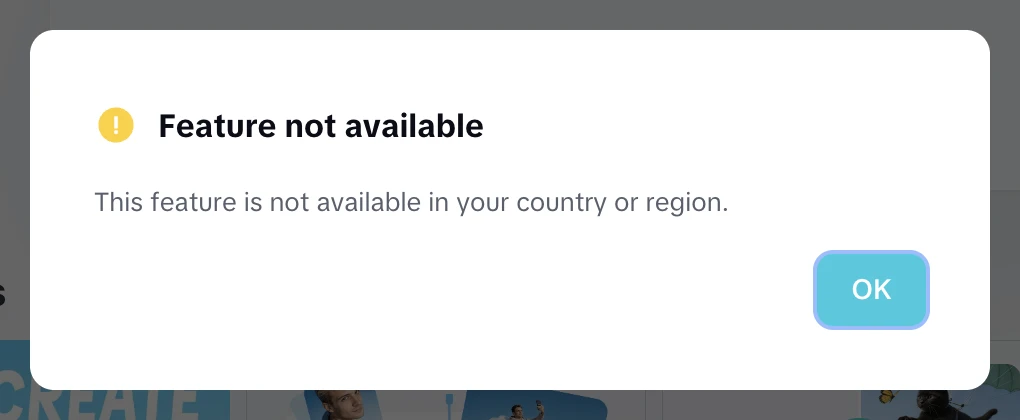
CapCut doesn't publish a list of where the tool works. Its pricing page only says that plan availability and features "may vary by region, platform, and current offering"[3]. If you see this message, you have three options:
- Use the desktop app. Availability can differ by platform. In our check on November 16, 2026, the tool opened in CapCut's desktop app (version 9.6) from the US while the web app blocked it.
- Cut the clips by hand in CapCut. The editor itself still works, and the steps are below.
- Use a dedicated AI clipper. Several tools find highlights and reframe video for you. We compare six in OpusClip alternatives.
How to turn a long video into Shorts manually in CapCut
The manual method takes longer, but it doesn't depend on the AI tool, and you control every cut. These are the steps in CapCut's web editor as of November 16, 2026:
- Upload the long video. Create a new project and upload the video. Uploads stay in your CapCut space, so the file is ready under Media in every new project.
- Set the ratio to 9:16. Click Ratio above the preview and choose 9:16, which CapCut labels for TikTok and Instagram stories. Drag the video's corner in the preview to scale it until the speaker fills the frame.
- Cut one moment. Move the playhead to where the moment starts and click Split (shortcut B), split again where it ends, then select the parts you don't need and click Delete.
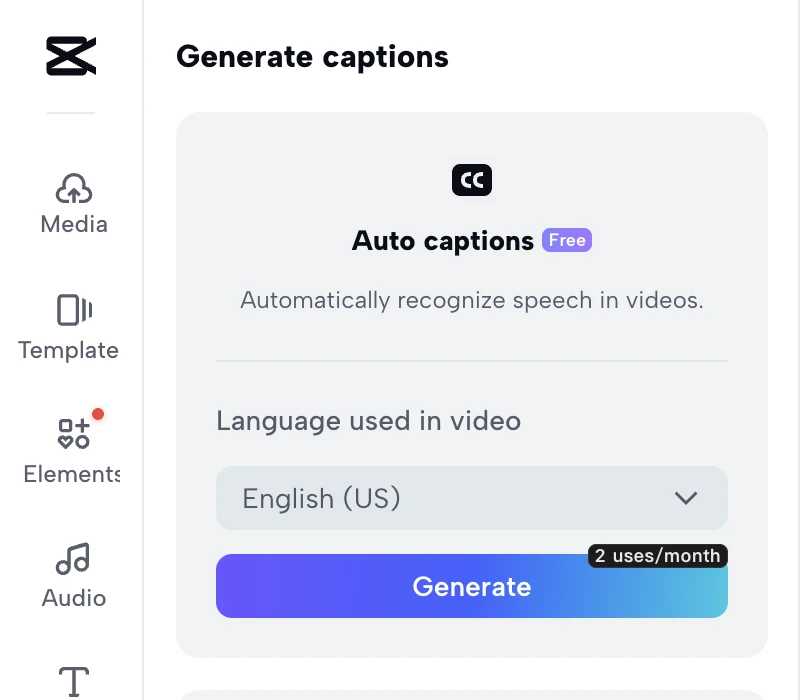
- Add captions. Open Captions and choose Auto captions, pick the language spoken in the video and click Generate. On our free account the button showed a limit of 2 uses a month. You can also type Manual captions or upload a caption file (.srt, .ass or .lrc).
- Export, then start the next clip. Export the vertical clip, then create a new project, add the same file from Media and repeat steps 2 to 5 for the next moment.
What export settings work for TikTok, Reels and Shorts?
Export every clip as a vertical 9:16 video at 1080 × 1920 pixels. That size fits TikTok, Instagram Reels and YouTube Shorts, and it is the size Posteady's AI video clipping renders as well[5].
Length matters most for YouTube Shorts and Facebook Reels. YouTube Help says a Short is a video "up to 3 minutes" with "a square or vertical aspect ratio"[4], so a longer clip uploads as a regular video. When you post through Posteady, the limits as of November 16, 2026 are 90 seconds for Facebook Reels, 2 minutes 20 seconds for X, 10 minutes for TikTok and 15 minutes for Instagram Reels[5], so a clip of 90 seconds or less fits every channel.
How do you post every clip without uploading one by one?
CapCut's tool page says finished clips can be shared to TikTok, YouTube, Facebook and Instagram[1]. CapCut's web app also has a Share and schedule calendar, but when we opened its dialog on November 16, 2026, the Share to list showed only TikTok.
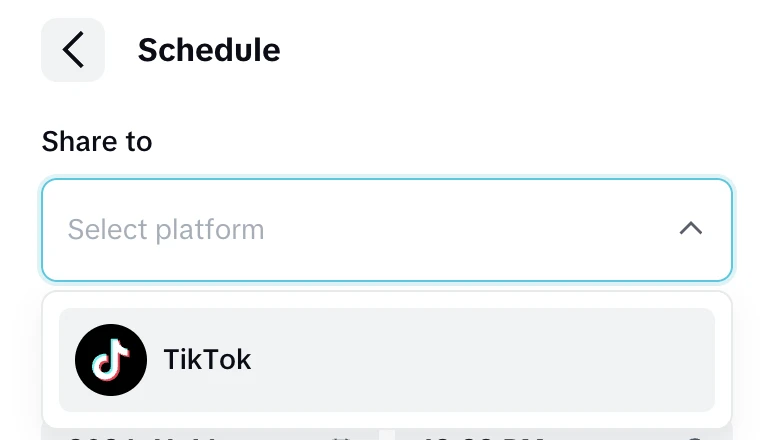
That leaves two ways to get the same clip onto every channel:
- Schedule in each app. TikTok, Instagram and YouTube each have their own scheduling. It costs nothing, but you upload the same clip three or more times.
- Use a multi-channel scheduler. Upload once, write a caption per channel and set one time for all of them. We compare free and paid ways to do this in how to post to all social media at once.
When is a dedicated AI clipper faster?
A dedicated clipper is faster when you clip talking videos every week, when CapCut's tool isn't available in your region, or when each clip goes to more than one channel. Vizard, Klap, Choppity, Descript and Riverside all find highlights for you, and we compare them with OpusClip in OpusClip alternatives. We make Posteady, so weigh what follows with that in mind.
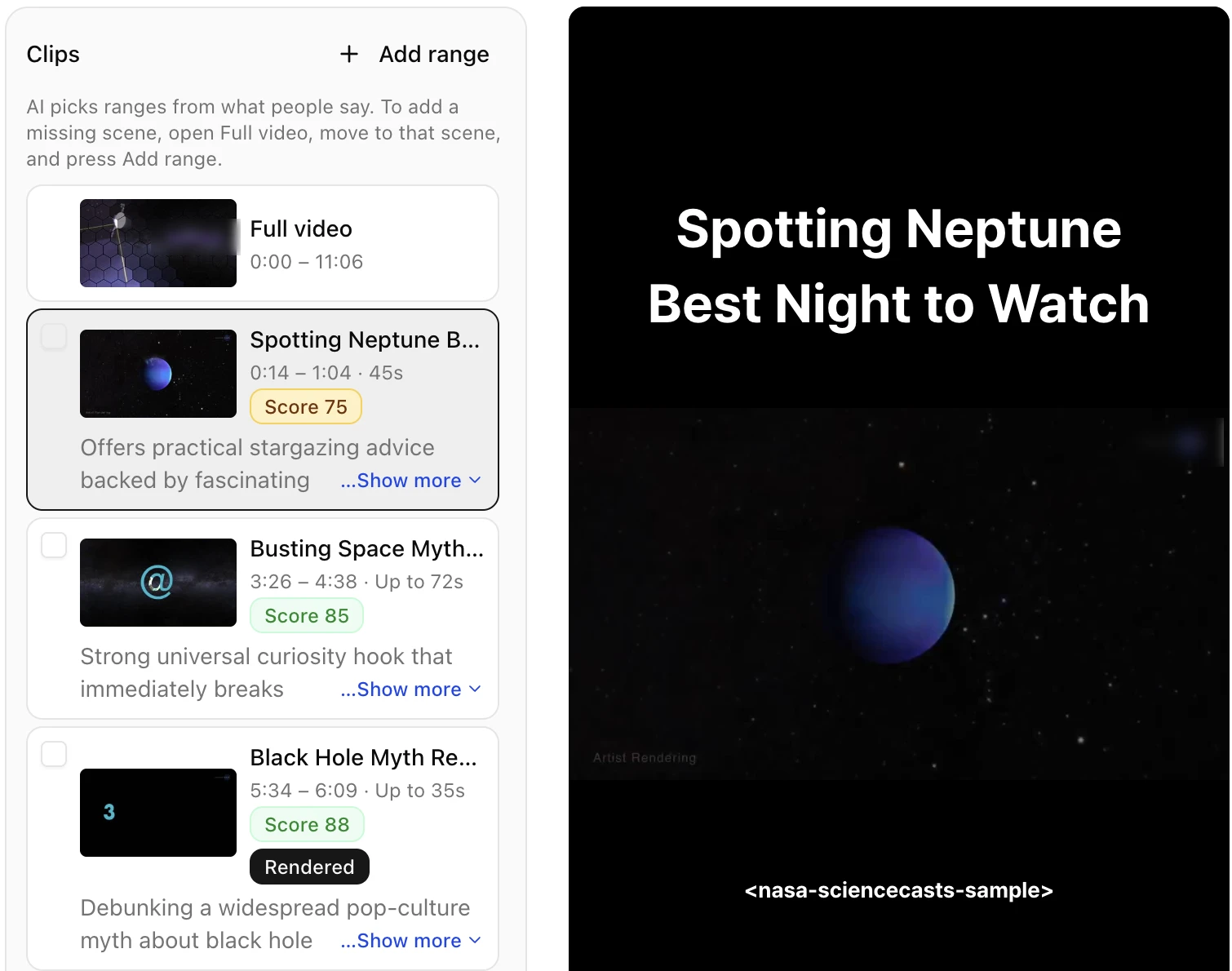
We ran an 11-minute sample video through Posteady's AI video clipping on November 16, 2026. The sample was three NASA ScienceCasts episodes joined into one narrated video[7]. We used the Basic (landscape) template, which keeps the whole horizontal frame inside the vertical video, so this test didn't use speaker following.
- Highlights: about 2 minutes 41 seconds from upload to 6 suggested clips. Each came with a title, time range, length, a score from 75 to 92 and a one-line reason for the pick. The analysis cost 22 credits: 10 credits plus 1 per started minute, and the 11-minute 6-second sample counted as 12 minutes[6].
- Clips: we picked the top 3 and they finished rendering in about 2 minutes 46 seconds, at 5 credits each, the price for clips up to 90 seconds[6]. Each clip came out as a 1080 × 1920 vertical video with a title and word-by-word captions.
- Posting: Create post opened a new post with the clip attached. We stopped there without posting.
My take: Posteady's AI clips one long video into several Shorts, and its templates and editor are easy to use. For about what a CapCut subscription costs, you get nearly every feature you need to run your social accounts in one tool. Month to month, Posteady's Creator plan is $29 and CapCut Pro is $19.99. Billed yearly, Creator is $240 ($20 a month) and CapCut Pro is $179.99[6][3]. Creator includes 1,500 credits a month and 3 social accounts, and each extra account is $5 a month[6].
Posteady isn't the right pick for everyone. It picks highlights from what people say, so a video without speech, such as a sports game, gets no useful suggestions[5]. It also has no free plan after the 7-day trial, and CapCut's template and effects library is far larger if creative editing is your main job.
Frequently asked questions
Is CapCut's long video to shorts free?
Yes, CapCut lists a free entry point, but not every account can open the tool. As of November 16, 2026, CapCut's tool page says "a free online editing entry point is available" and that "current account or feature availability should be checked in the editor"[1]. In our US test, the web app showed "This feature is not available in your country or region," while the desktop app opened the tool.
Does CapCut publish a maximum video length for Long video to shorts?
No. As of November 16, 2026, CapCut's tool pages don't list a maximum length, file size or number of clips[1][2]. Posteady's clipping accepts videos up to 3 hours and 10 GB[5].
Does CapCut add captions to the clips automatically?
Yes. As of November 16, 2026, CapCut says automatic captions can be included when clips are generated and recommends checking caption text and timing before you publish[1]. In the manual editor, our free account could run Auto captions 2 times a month.
Can CapCut turn a horizontal video vertical and keep the speaker in frame?
Yes, according to CapCut. As of November 16, 2026, its PC page lists auto subject tracking that adapts a 16:9 video to 9:16[2].
Can you schedule CapCut clips to TikTok, Instagram and YouTube at once?
No. In our test on November 16, 2026, CapCut's Share and schedule dialog listed only TikTok. To schedule one clip to Instagram Reels, YouTube Shorts and other channels at the same time, use a multi-channel scheduler.
Sources
-
CapCut, Convert Long Videos to Short Videos by AI. Checked November 16, 2026. ↩︎ ↩︎ ↩︎ ↩︎ ↩︎ ↩︎ ↩︎ ↩︎ ↩︎ ↩︎ ↩︎ ↩︎ ↩︎ ↩︎
-
CapCut, Create Viral Clips from Long Video | CapCut PC. Checked November 16, 2026. ↩︎ ↩︎ ↩︎ ↩︎ ↩︎ ↩︎ ↩︎ ↩︎
-
CapCut, Choose your plan. Checked November 16, 2026. ↩︎ ↩︎ ↩︎ ↩︎
-
YouTube Help, Upload YouTube Shorts. Checked November 16, 2026. ↩︎ ↩︎
-
Posteady, AI Video Clipping. Checked November 16, 2026. ↩︎ ↩︎ ↩︎ ↩︎ ↩︎ ↩︎ ↩︎ ↩︎ ↩︎
-
Posteady, Pricing. Checked November 16, 2026. ↩︎ ↩︎ ↩︎ ↩︎ ↩︎
-
NASA Image and Video Library, ScienceCasts: Eye on Neptune, Shedding Light on Black Holes and Effects of the Solar Wind. Public domain. Checked November 16, 2026. ↩︎
Written by
Ryan Han · Founder
Ryan Han is the founder of Posteady, a social media scheduling and analytics tool for marketers, creators, and agencies. He builds the product hands-on, checks each platform's scheduling rules and limits against official docs and real posts, and writes up what he finds.